WireGuard VPN Tutorial for Beginners: Step-by-Step Guide
WireGuard is a modern VPN protocol designed to be fast, secure, and easy to deploy. Many beginners search for a wireguard vpn tutorial for beginners because traditional VPNs feel complex, slow, and hard to maintain. This guide directly answers that intent by explaining what WireGuard is, why it matters, and how to set it up step by step without unnecessary theory. By the end, you will understand the full workflow from installation to a working VPN tunnel.
What WireGuard Is and Why Beginners Choose It
WireGuard is a lightweight VPN protocol that uses state-of-the-art cryptography. It was created to replace older protocols like OpenVPN and IPSec, which often require complex configuration files and long setup times. WireGuard focuses on simplicity while maintaining strong security guarantees.
For beginners, the biggest advantage is clarity. WireGuard uses a small codebase, simple configuration files, and predictable behavior. This makes a wireguard vpn tutorial for beginners far easier to follow compared to legacy VPN guides.
WireGuard operates using public and private key pairs instead of usernames and passwords. This model reduces attack surfaces and simplifies authentication. Once keys are exchanged, the connection is fast and stable.
Basic Requirements Before You Start
Before setting up WireGuard, you need a few basic components. You need a server with a public IP address, such as a VPS running Linux. Most beginners start with Ubuntu because it has strong WireGuard support.
You also need a client device. This can be a laptop, smartphone, or another server. WireGuard clients are available for Windows, macOS, Linux, Android, and iOS. This makes cross-platform use straightforward.
Finally, you need basic command-line access to your server. You do not need advanced Linux skills, but you must be comfortable copying commands and editing text files. This wireguard vpn tutorial for beginners assumes no prior VPN experience.
Installing WireGuard on the Server
The first step is installing WireGuard on your server. On Ubuntu, this process is simple and well-documented. You update the package list and install the WireGuard package from the official repository.
After installation, WireGuard is available as a kernel module and user-space tools. This design contributes to its high performance. Unlike older VPNs, WireGuard does not rely on heavy background services.
Once installed, you generate a private and public key pair for the server. These keys identify the server in the VPN network. Keep the private key secure because it controls access to the VPN endpoint.
Creating the WireGuard Server Configuration
WireGuard configuration files are minimal by design. The main file is usually named `wg0.conf`. It defines the server interface, IP address, listening port, and cryptographic keys.
You assign the server a private VPN IP address. This address is not public and only exists inside the VPN tunnel. Choosing a private subnet that does not conflict with existing networks is essential.
You also enable IP forwarding on the server. This allows traffic from VPN clients to access external networks through the server. This step is critical in any wireguard vpn tutorial for beginners because missing it breaks internet access.
Setting Up a Client Configuration
Each client in WireGuard has its own key pair. This ensures isolation and fine-grained control. If one client is compromised, others remain secure.
The client configuration file includes the client’s private key and assigned VPN IP address. It also defines the server’s public key and endpoint. This tells the client where to connect.
You can generate client keys on the server or directly on the client device. Both approaches are valid. Beginners often prefer generating everything on the server to reduce complexity.
Connecting Client and Server Securely
Once both configurations are ready, you link them together. On the server, you add a peer section for the client. This section includes the client’s public key and allowed IP address.
On the client, you specify which traffic goes through the VPN tunnel. Most beginners route all traffic through the VPN. This is done by setting the allowed IPs to `0.0.0.0/0`.
After configuration, you bring up the interface using a single command or toggle. If everything is correct, the tunnel establishes instantly. This fast handshake is a defining feature of WireGuard.
Testing and Verifying the VPN Connection
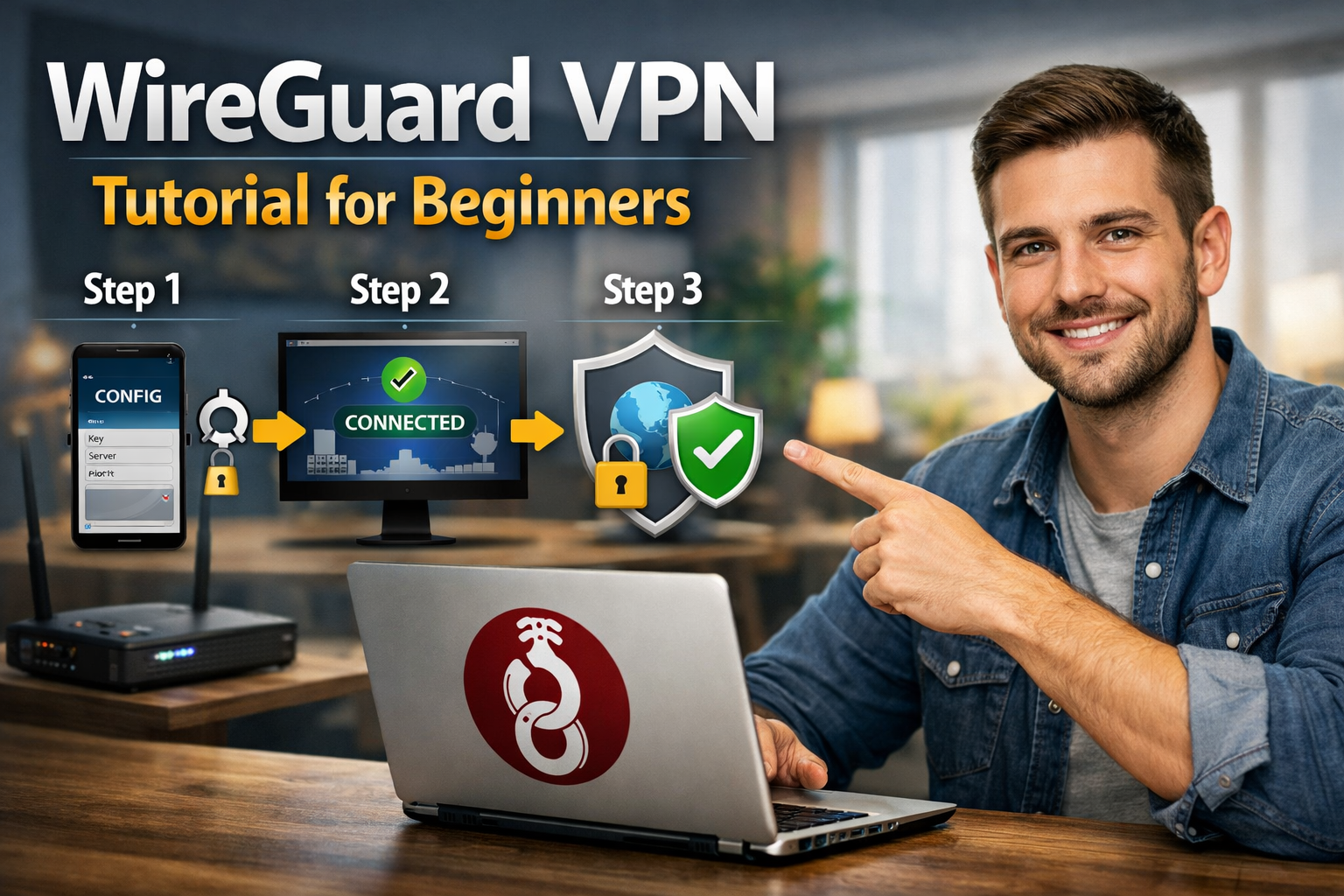
Testing is a required step in any wireguard vpn tutorial for beginners. You start by checking the interface status on both server and client. WireGuard provides clear output showing handshake times and data transfer.
You then verify the IP address from the client side. If the VPN is active, the public IP should match the server’s IP. This confirms that traffic is routed correctly.
Finally, you test DNS resolution and general connectivity. If websites load normally, the VPN is functioning as expected. At this stage, the core setup is complete.
Common Mistakes Beginners Should Avoid
One common mistake is mismatched keys. Public and private keys must correspond correctly. A single copy-paste error prevents the tunnel from forming.
Another frequent issue is incorrect IP ranges. Overlapping subnets cause routing conflicts that are hard to debug. Always plan your VPN IP range carefully.
Firewall rules are another source of problems. The server must allow the WireGuard port through the firewall. This step is often overlooked in beginner setups.
Security and Maintenance Basics
WireGuard is secure by default, but maintenance still matters. You should protect private keys and limit peer access. Removing unused clients reduces attack surfaces.
Regular system updates are essential. While WireGuard itself is stable, the underlying operating system must remain patched. This keeps the VPN environment secure.
You can also rotate keys periodically. Although not mandatory, key rotation is a good practice for long-term deployments. Even in a wireguard vpn tutorial for beginners, understanding this concept adds resilience.
When WireGuard Is the Right Choice
WireGuard is ideal for personal VPNs, remote access, and small teams. Its simplicity reduces operational overhead. Performance is excellent even on low-resource servers.
However, WireGuard does not include built-in user management or logging. Large enterprises may need additional tooling. Beginners usually benefit from WireGuard’s minimalism.
Understanding these boundaries helps you deploy WireGuard appropriately. This clarity prevents misuse and unrealistic expectations.
Conclusion
This wireguard vpn tutorial for beginners covered the full lifecycle of a basic WireGuard setup, from installation to testing and maintenance. WireGuard’s simplicity, speed, and strong security model make it an excellent starting point for anyone new to VPNs. By following a structured approach, beginners can deploy a reliable VPN without unnecessary complexity.
FAQ
Q: What makes WireGuard easier than OpenVPN for beginners? A: WireGuard uses fewer configuration options and simpler key-based authentication, reducing setup complexity and error rates.
Q: Is WireGuard safe for personal use? A: Yes, WireGuard uses modern cryptography and has a small codebase, which reduces potential vulnerabilities.
Q: Can I use WireGuard on mobile devices? A: Yes, official WireGuard apps are available for Android and iOS with the same configuration principles.
Q: Do I need a static IP address for WireGuard? A: The server should have a static public IP, but clients can connect from dynamic IP addresses without issues.
Q: Does WireGuard slow down internet speed? A: WireGuard is designed for high performance and typically has minimal impact on connection speed compared to older VPN protocols.
