How to Check If VPN Is Working Properly
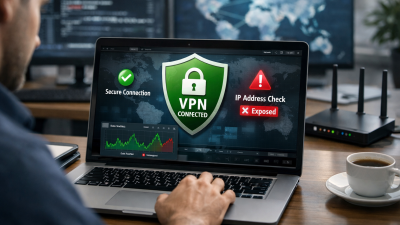
When you connect to a VPN, you expect your data to be encrypted and your IP address hidden. However, simply seeing a “connected” status does not guarantee full protection. Understanding how to check if VPN is working ensures your online activity is actually secured and your real location remains private. A few simple verification steps can confirm whether your VPN connection is functioning as intended.
Check Your IP Address Before and After Connecting
The most direct method to verify your VPN is by checking your public IP address. First, disconnect from the VPN and visit an IP lookup website to note your real IP address and detected location. Then connect to your VPN server and refresh the same IP checker page.
If the VPN is working properly, the displayed IP address and location should change. The new IP should match the country or city of the VPN server you selected. If the IP remains the same, the VPN is not routing your traffic correctly.
This simple comparison answers the core question of how to check if VPN is working because a functional VPN must mask your original IP. Without this change, your traffic is still exposed to your internet service provider and other third parties.
Verify DNS Leak Protection
Even if your IP address changes, DNS leaks can still expose your browsing activity. A DNS leak occurs when your system continues to use your ISP’s DNS servers instead of the VPN’s secure DNS servers. This can reveal the websites you visit.
To test this, connect to your VPN and use an online DNS leak testing tool. The results should show DNS servers associated with your VPN provider, not your ISP. If you see your ISP’s name or your real location, your VPN may not be fully protecting you.
A proper DNS test is a critical step in learning how to check if VPN is working beyond surface-level IP masking. Advanced users should also enable DNS leak protection features inside their VPN settings for stronger security.
Test for WebRTC Leaks
WebRTC is a browser feature that enables real-time communication, but it can sometimes reveal your real IP address even when connected to a VPN. This is called a WebRTC leak. It primarily affects users of Chrome, Firefox, and other Chromium-based browsers.
To check for this issue, connect to your VPN and use an online WebRTC leak test tool. If the test reveals your original IP address, your browser is bypassing the VPN tunnel. This undermines privacy and compromises your anonymity.
Disabling WebRTC in your browser settings or installing privacy-focused extensions can prevent this problem. Addressing WebRTC leaks is an essential part of properly understanding how to check if VPN is working in real-world browsing scenarios.
Confirm Your Encryption Is Active
A VPN does more than hide your IP address; it also encrypts your traffic. Most VPN apps display connection details such as protocol type (OpenVPN, WireGuard, IKEv2) and encryption standards like AES-256. Reviewing these details helps confirm that encryption is active.
You can also check your network status by accessing your device’s network settings. If the VPN is functioning, you should see a virtual network adapter or active tunnel connection. This indicates that your data is being routed through an encrypted channel.
For deeper inspection, advanced users may monitor network traffic using packet analysis tools. While not necessary for most people, this level of testing provides definitive proof when verifying how to check if VPN is working at a technical level.
Test Location-Based Restrictions
Another practical method is testing geo-restricted content. Connect to a VPN server in a specific country and attempt to access content that is only available in that region. For example, connect to a UK server and try loading UK-exclusive streaming content.
If the VPN works correctly, the service should detect you as browsing from the chosen country. If you are blocked or still see content from your original region, your VPN may not be masking your location properly.
This approach provides a functional test rather than a technical one. It demonstrates in real time whether the VPN is successfully altering your digital location, offering another practical way to verify how to check if VPN is working.
Check for Kill Switch Functionality
A kill switch automatically disconnects your internet if the VPN connection drops unexpectedly. Without it, your real IP address could be exposed during brief interruptions. Testing this feature ensures continuous protection.
To test, enable the kill switch in your VPN settings and connect to a server. Then manually disconnect the VPN or simulate a connection drop. If the kill switch works, your internet connection should immediately stop until the VPN reconnects.
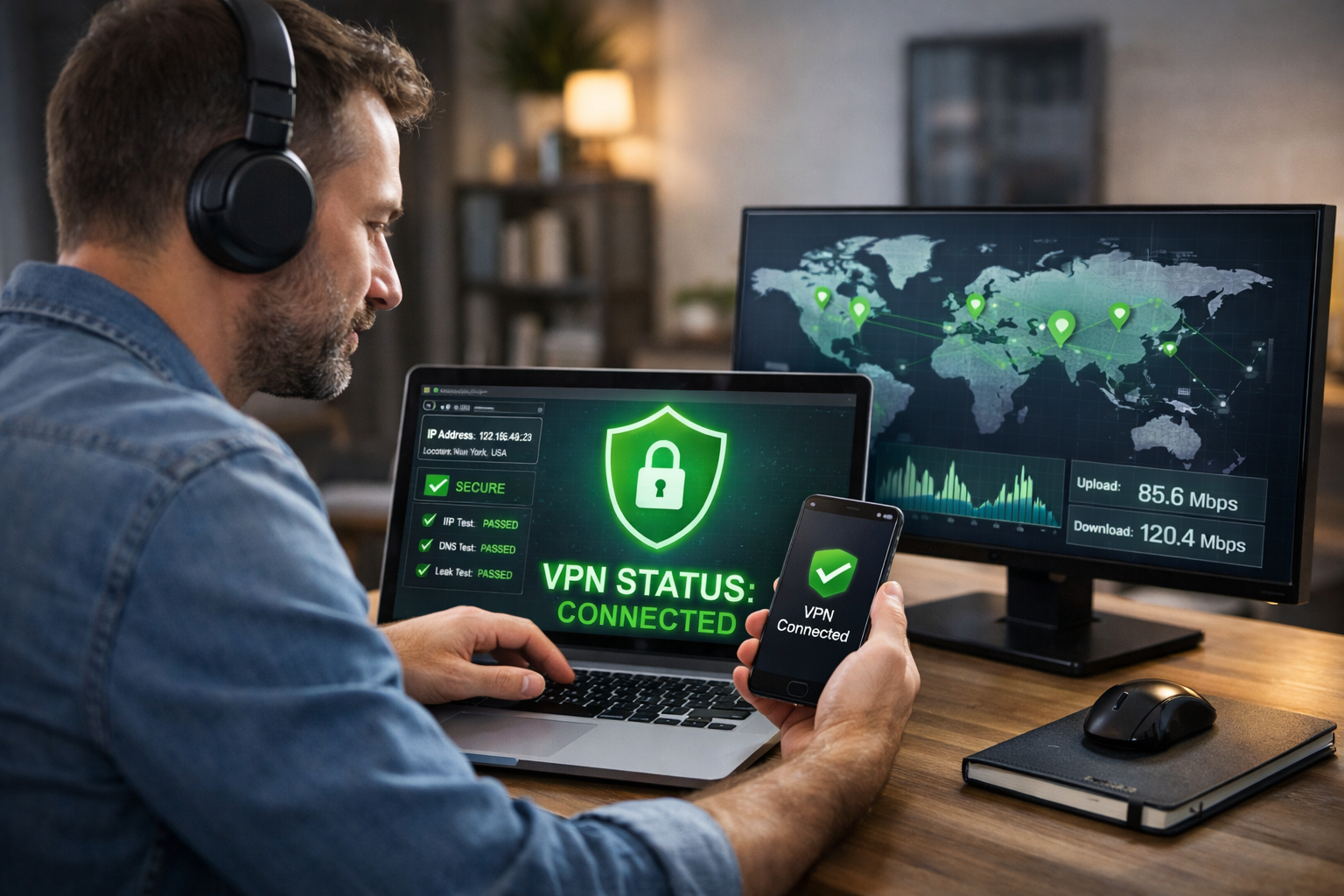
This test confirms that your privacy remains protected even during instability. When evaluating how to check if VPN is working, ensuring the kill switch operates correctly is crucial for maintaining uninterrupted security.
Monitor Connection Stability and Speed
Performance testing also helps determine whether your VPN is functioning properly. While VPNs typically reduce speed slightly due to encryption overhead, the connection should remain stable. Run a speed test without the VPN, then repeat it while connected.
A moderate drop in speed is normal. However, frequent disconnections, extreme latency, or unstable browsing may indicate configuration issues or server problems. Stability is part of overall VPN functionality, not just IP masking.
Consistent connection performance supports the broader assessment of how to check if VPN is working reliably over time. A VPN that frequently disconnects compromises security, even if it initially hides your IP.
Confirm IPv6 Leak Protection
Some networks use IPv6 in addition to IPv4. If your VPN only protects IPv4 traffic, your IPv6 address may leak and expose your identity. Testing for IPv6 leaks adds another layer of verification.
Connect to your VPN and use an IPv6 leak test website. If your real IPv6 address appears, your VPN may not support IPv6 properly. Disabling IPv6 in your device settings or enabling IPv6 leak protection in your VPN can resolve this issue.
Including IPv6 checks strengthens your understanding of how to check if VPN is working comprehensively, especially in modern network environments.
Review VPN Logs and App Status
Most reputable VPN applications provide connection logs or status indicators. These logs show connection timestamps, selected server locations, and protocol usage. Reviewing them confirms whether your traffic is actively routed through the VPN server.
Look for clear indicators such as “Connected,” “Encrypted Tunnel Established,” or protocol details. If the logs show repeated reconnections or authentication errors, the VPN may not be stable.
Checking logs adds transparency and supports a thorough evaluation of how to check if VPN is working from within the application itself.
Conclusion
Knowing how to check if VPN is working requires more than trusting a green connection icon. By verifying your IP address, testing for DNS and WebRTC leaks, confirming encryption, evaluating geo-location changes, and checking kill switch functionality, you can ensure your VPN provides real protection. A properly functioning VPN should hide your IP, encrypt your traffic, prevent leaks, and maintain stable connectivity at all times.
FAQ
Q: How do I know if my VPN is hiding my IP address? A: Check your IP address before and after connecting to the VPN. If it changes to the VPN server’s location, your IP is successfully masked.
Q: What is a DNS leak and why does it matter? A: A DNS leak happens when your device uses your ISP’s DNS servers instead of the VPN’s, potentially exposing your browsing activity.
Q: Can a VPN show as connected but not actually work? A: Yes, a VPN may appear connected while failing to route traffic properly, which is why IP and leak tests are necessary.
Q: Does a slower internet speed mean my VPN is working? A: Slight speed reduction is normal due to encryption, but extreme slowdowns or instability may indicate a problem.
Q: Why should I test WebRTC leaks? A: WebRTC leaks can reveal your real IP address through your browser even when the VPN is active, compromising your privacy.
