How to Change VPN on iPhone: Step-by-Step Instructions
constantvpn.com – Learn how to change VPN on iPhone with our detailed guide. Discover step-by-step instructions, FAQs, and tips to enhance your online privacy and security.
In today’s digital age, maintaining online privacy and security is more important than ever. One effective way to protect your personal information and access restricted content is by using a Virtual Private Network (VPN).
If you’re an iPhone user, you might be wondering how to change VPN on iPhone to suit your needs. This comprehensive guide will walk you through the process step-by-step, ensuring you can easily switch VPNs and enjoy a safer online experience.
Why Use a VPN on Your iPhone?
Using a VPN on your iPhone offers numerous benefits. It encrypts your internet connection, making it difficult for hackers and third parties to intercept your data.
Additionally, a VPN allows you to access geo-restricted content, such as streaming services and websites that may be blocked in your region. By changing your VPN, you can optimize your online experience and enhance your security.
How to Change VPN on iPhone
Understanding VPN Settings on iPhone
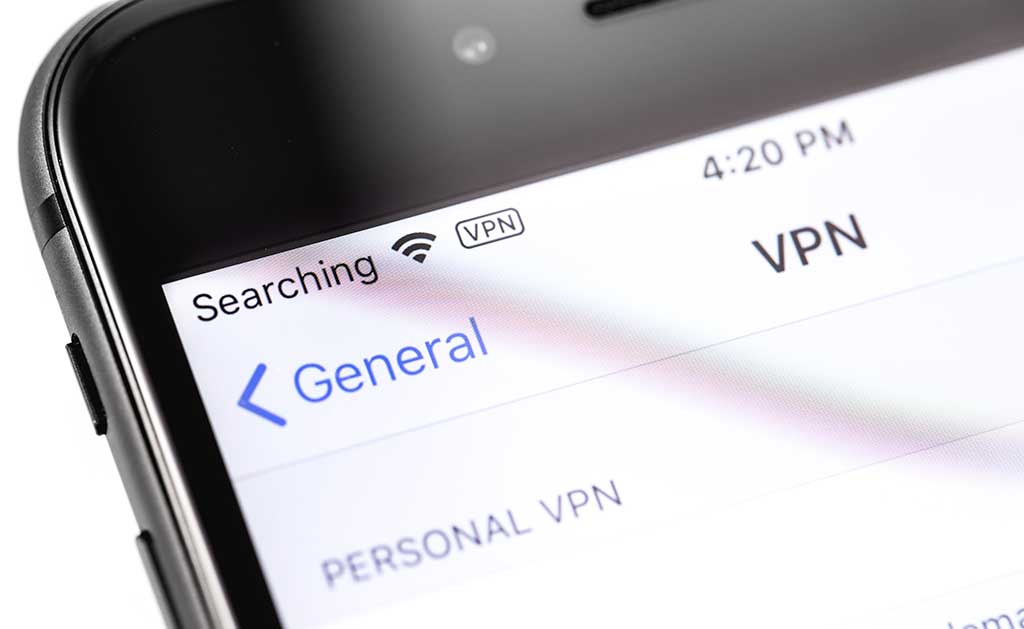
Before diving into the steps, it’s essential to understand the VPN settings on your iPhone. The iOS operating system provides built-in support for VPN configurations, making it easy to add, remove, or change VPN profiles. Here’s how to access the VPN settings:
- Open the Settings app on your iPhone.
- Scroll down and tap on General.
- Select VPN.
Adding a New VPN Configuration
To change VPN on iPhone, you first need to add a new VPN configuration. Follow these steps:
- In the VPN settings, tap on Add VPN Configuration.
- Choose the type of VPN you want to add (e.g., IKEv2, IPSec, or L2TP).
- Enter the required information, such as the server address, remote ID, and authentication credentials.
- Tap Done to save the configuration.
Switching Between VPN Configurations
Once you’ve added multiple VPN configurations, you can easily switch between them:
- Go to the Settings app and select General.
- Tap on VPN.
- Choose the VPN configuration you want to use and toggle the switch to connect.
Removing an Existing VPN Configuration
If you no longer need a particular VPN configuration, you can remove it:
- Open the Settings app and go to General.
- Select VPN.
- Tap on the information icon (i) next to the VPN configuration you want to delete.
- Tap Delete VPN.
Best VPN Apps for iPhone
NordVPN
NordVPN is a popular choice for iPhone users due to its robust security features and user-friendly interface. It offers a wide range of servers, fast connection speeds, and advanced encryption protocols.
To change VPN on iPhone using NordVPN, simply download the app from the App Store, sign in, and follow the on-screen instructions to connect to a server.
ExpressVPN
ExpressVPN is another top-rated VPN service that provides excellent performance and security. It boasts a vast network of servers, strong encryption, and a strict no-logs policy. To change VPN on iPhone with ExpressVPN, install the app, log in, and select a server location to connect.
CyberGhost
CyberGhost is known for its ease of use and comprehensive privacy features. It offers dedicated servers for streaming, torrenting, and browsing, ensuring a smooth and secure online experience. To change VPN on iPhone with CyberGhost, download the app, create an account, and choose a server to connect.
Troubleshooting Common VPN Issues on iPhone
VPN Connection Drops Frequently
If your VPN connection drops frequently, try the following solutions:
- Ensure you have a stable internet connection.
- Switch to a different VPN server.
- Update your VPN app to the latest version.
- Restart your iPhone.
Unable to Connect to VPN
If you’re unable to connect to your VPN, consider these troubleshooting steps:
- Double-check your VPN configuration settings.
- Verify your login credentials.
- Reinstall the VPN app.
- Contact your VPN provider’s support team for assistance.
FAQs
What is a VPN and why should I use it on my iPhone?
A VPN (Virtual Private Network) encrypts your internet connection, providing enhanced security and privacy. It allows you to access geo-restricted content and protects your data from hackers and third parties.
How do I know if my VPN is working on my iPhone?
You can check if your VPN is working by visiting a website that displays your IP address. If the IP address matches the server location of your VPN, it means your VPN is active.
Can I use a free VPN on my iPhone?
Yes, there are free VPN services available, but they often come with limitations such as data caps, slower speeds, and fewer server options. For better performance and security, consider using a paid VPN service.
How often should I change my VPN on iPhone?
There is no specific timeframe for changing your VPN. However, you may want to switch VPNs if you’re experiencing connection issues, need access to different server locations, or want to try a different VPN provider.
Is it legal to use a VPN on my iPhone?
Yes, using a VPN is legal in most countries. However, some countries have restrictions on VPN usage, so it’s essential to check the laws in your region before using a VPN.
Conclusion
Changing your VPN on iPhone is a straightforward process that can significantly enhance your online privacy and security. By following the steps outlined in this guide, you can easily add, switch, and remove VPN configurations on your iPhone.
Additionally, consider using reputable VPN services like NordVPN, ExpressVPN, or CyberGhost for a seamless and secure experience. Stay safe online and enjoy unrestricted access to your favorite content by learning how to change VPN on iPhone.
